Showing posts with label Application. Show all posts
How to Restrict Background Data Usage on Best Android Phone's

How to Restrict Background Data Usage on Best Android Phone's

The Android OS and the apps made highly dependent on the internet data and this can be made easily proven by the amount of data consumed by your phone in its day to day usage.
Google has provided an option to Restrict background data usage by apps, Starting with Android 4.0 Jelly Bean.Here some steps are provided to follow.

How to Restrict Background Data on Android Device Trick:-

  •  Step 1:- Go to your Android Phone's or Devices Settings.
  •  Step 2:- Select the Data Usage.


  • Step 3:- Tap on the three vertical dots on the top right and select Restrict Background Data.( On some devices,the Restrict Background data may not be placed in the same Location)
restrict-background-data-usage-android
That's it you have completed the android apps installed on your phone won't consume data when not in use.

How to Find your Android phone's IMEI code in Google Settings

Every device has got a unique IMEI Number that can be used to track Phone when it
Lost or Stolen.The IMEI no. code is usually printed on the phone's packaging or inside
the battery Compartment and it can also be viewed on your phone by dialing *#06#
in your phone's dialer, which is a universal code for all cell phones.

In any case if you forget to note down the IMEI no. of their cell phones and unfortunately
their phones get lost.In that situation if you have an Android Phone, Google will 
Automatically save its IMEI code in your Google account settings.Here's how you can view
your Android phone's IMEI code in your Google account settings.

Find your Android phone's IMEI number in Google Settings.
  • Step 1:- Head over to your Google Account Settings DASHBOARD from the following link:-https://www.google.com/settings/dashboard
  • Step 2:- Enter your Password for Verification.
  • Step 3:- Click on your Android device to expand it and there you go,you can see your Android phone's make model amd IMEI code.
How to Access Blocked Websites on a Android Devices or Smartphones

How to Access Blocked Websites on a Android Devices or Smartphones

How to Access Blocked Websites on a Android Devices or Smartphones


Accessing the Blocked Website has become a big issue for the internet users now a days.But we can Access them with too many free Proxy and VPN services.It as more additiona features to use it.With the increase mobile internet services,people also suffering the internet to access the blocked websites on your Android devices.We can avoid this by Android devices to access the blocked sites.

                           
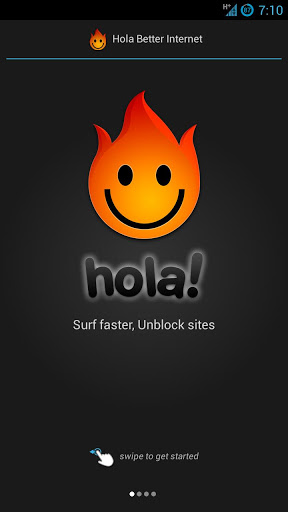
Accessing blocked websites is easy on Android devices by using a free VPN app is called as HOLA Free VPN App.By this app you can access any blocked websites . 

How to Access Blocked Websites on Android Devices:-
Steps to follows :-
Step 1:- You have to install the HOLA Free VPN app on your samrtphone or android devices.

Download Here

Step 2:-Open the App and you have to tap on My Apps.
Step 3:-Now you have to tap on any Web Browser listed in it.For your guide i am going to tap on Chrome.

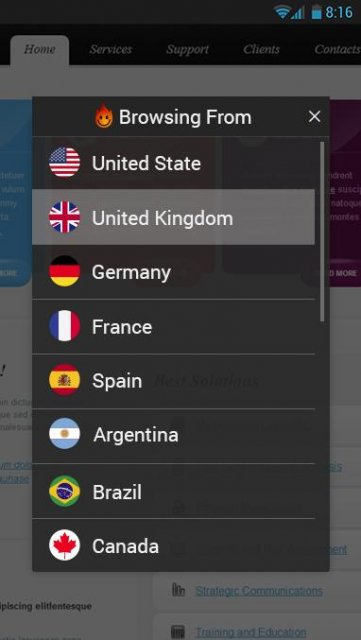
Step 4:-Tap on Using from united states or any other country that appears on the screen.

Step 5:-You have to select a VPN from the other country within a few seconds that the 
default VPN will be changed in that.

Step 6:-Now Tap on the OPEN button to open the APP and now you can Access the Blocked Websites with this HOLA VPN App.
open-app
Now you can Access any websites by this HOLA VPN app.In some situation country base restrictions websites cannot open in such situation you have to use another VPN.

Truecaller Mobile App Latest Version

Truecaller Mobile App Latest Version


 TrueCaller Mobile App Latest Version


Truecaller helps to identify the unknown calls with Caller ID,and blocks unwanted calls
and Spam calls by users all over the world.
Today in the world more than 100 millions people using this app.
If the caller you dont know by this app you can easily find out the person.
Note:- TrueCaller Never uploads your phonebook or any contacts

Click Here to Download :- www.mytrickszeal.com

How TO Enable USB DEBUGGING Mode On Android Lollipop 5.0

How TO Enable USB DEBUGGING Mode On Android Lollipop 5.0
The USB DEBUGGING MODE enable is the one of the most critical stepping in Android Rooting process which can able to done manually by users themselves.Now the latest version ANDROID LOLLIPOP 5.0 has been ruling the world .This article shows you,how to enable USB Debugging mode on android 5.0,the new looks into its UI. This is also same as the previous version of android 4.2 it has some steps to follow:-

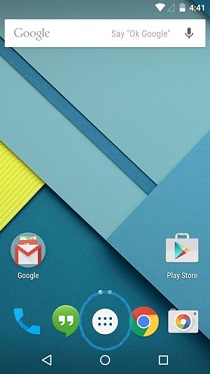
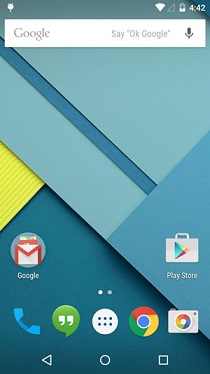
Step1:- Home Screen


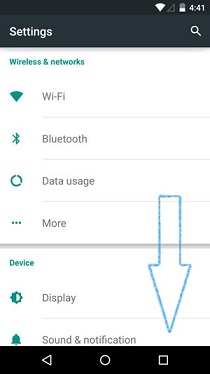
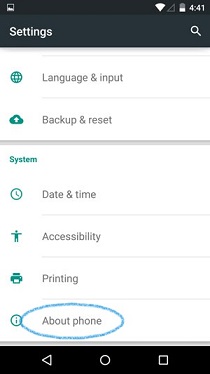
Step2 :- Settings > About phones

Android 5.0 Lollipop


Android 5.0 Lollipop

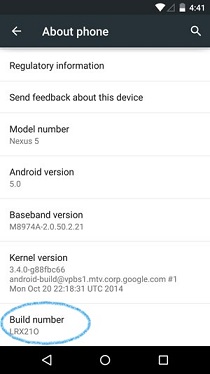
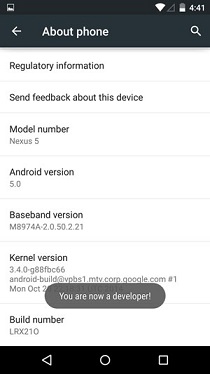
Step3 :- About phone tap on > Build No.Tap it for 7 times for become developer

Android 5.0 Lollipop


Android 5.0 Lollipop

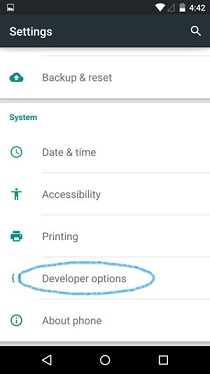
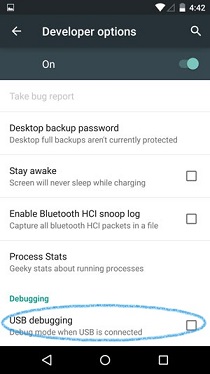
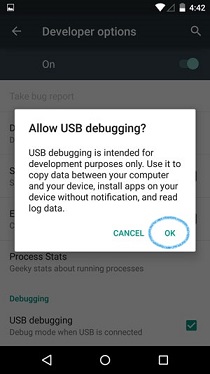
Step4 :-Setting > Developer option > USB Debugging


Android 5.0 Lollipop


Step5 :- Click on enable USB Debugging mode for an Android (5.0) Lollipop

Android 5.0 Lollipop


Android 5.0 Lollipop

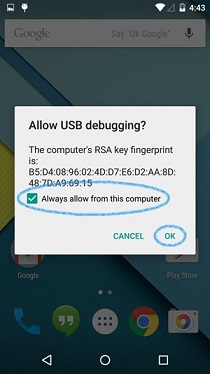
NOTE :- When you are rooting the your device you need to connect it with the pc for the allowing of USB Debugging mode from computer .Click always allow form computer to ensure the rooting process for you device

Android 5.0 Lollipop

Thanks for visiting the site we provide the Latest news of Android news and update latest versions.

TWRP MANAGER(ROOT) ANDROID APK Apps

TWRP MANAGER(ROOT) ANDROID APK Apps


 TWRP MANAGER(ROOT) ANDROID APK Apps


If you have any Downloading and Installing issues TWRP from the APP, you can run the KK SD Card fix in Setting...........


Here the several features are incompatible with different versions of BusyBox. This is why we require you to use BusyBox.It is the only one we have tested that works for flawlessly

This app allows you to install BACKUP,RESTORE,and WIPE your device ll using TWRP. This utilizes to Open Recovery Script to complete these all actions.

Now features a premium live backup option. Nandroid backup your device while the booted in your Android and without Rebooting it to Recovery

Here we have added in an app to purchase and to remove ads.

If are unhappy with your purchase email us at the email adds below with if you would like us to fix the issues or just refund your money either way we will  happily oblige.

Flash your recovery from the android only if available for the official TWRP supported.

Features :-

v7.5.1.3: Updated images to latest from Team Win

Fixed crash on TF300T

v7.5.1.2 Fixed Live Backup crsh on most devices

v7.5.1.1 some design fixes

Send email:-support@jmzsoftware.com

Click Here to Download :-https://mytrickszeal.com